Google plans to release its much-awaited iOS Maps app tonight, according to sources familiar with the matter.
The app should be a welcome addition for many iPhone users, who have been unhappy with an Apple-made replacement.
Google Maps had been pre-installed on the iPhone since the smartphone first launched, but the app was bounced in September with the debut of iOS 6.
The big reason for the change? Google had declined to provide voice navigation for Apple’s map app, among other features, after it had made significant investment in building out turn-by-turn directions for its own mapping products on Android and elsewhere.
However, Apple’s replacement mapping app was clearly not ready for prime time when it launched, and it continues to lead people astray and lack significant features such as transit directions.
Google did not immediately reply to a request for comment. A spokesperson for Apple declined to comment.
Apple CEO Tim Cook formally apologized to users for Mapplegate, and since then bothmobile software head Scott Forstall and maps manager Rich Williamson have been ousted.
Meanwhile, Google execs such as Eric Schmidt had hinted that a replacement app was in the works but noted that it would have to be approved by Apple.
Just the fact that the Google Maps will be available for iOS doesn’t mean everyone will use it; the app will still be competing with Apple’s competitor, which is installed by default. But at least a few holdouts will be happy they can now finally upgrade to iOS 6.
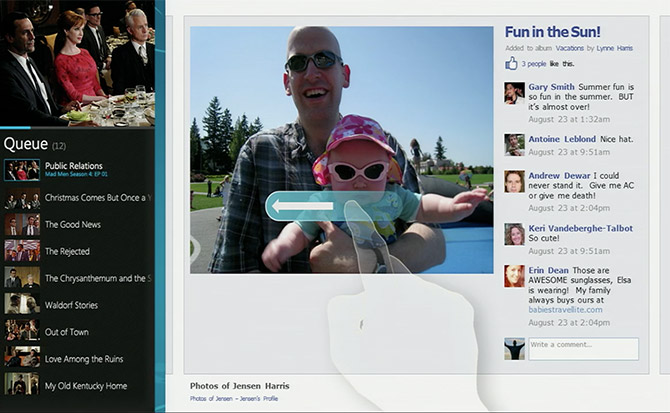
The early Start screen had a persistent clock and status icons. Wide tiles were wider, and narrow ones narrower.
Earlier this year, a presentation made by Jensen Harris, Director of Program Management for the Windows User Experience Team, gave a rare glimpse into how Windows 8 looked and worked before Microsoft went public with the operating system.
In the presentation, first noted by blogger Long Zheng, Harris talks about how Windows 8's user interface came to be. His central thesis is that familiar interfaces can be displaced by new interfaces that are built for the present rather than the past. The graphical Windows displaced the text-mode DOS; Windows 95's easy multitaksing replaced Windows 3.1.
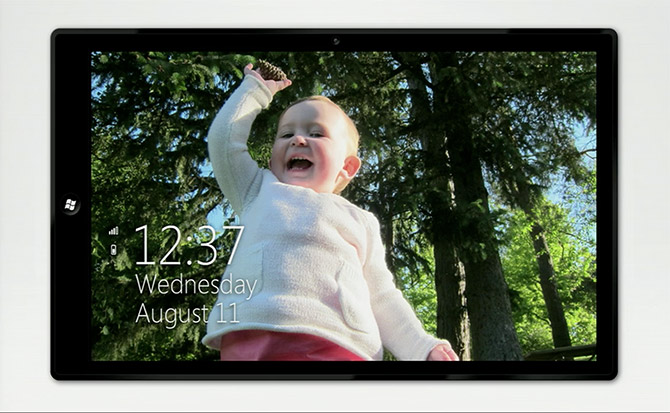
Enlarge / The early lock screen is very similar to the final product, though the small icons are now below the date.
What modern change justifies Windows 8's abandonment of familiarity? New form factors, new modes of interaction, and the pervasive use of the Internet. Though they didn't ship until 1995, the basics of the Windows taskbar and Start menu interface were designed in 1992, in an era before widespread Internet usage when Office and document editing were king.
In the 20 years since, the Internet has become a part of everyday life. Documents are still important but they're no longer central; computers, tablets, and smartphones have replaced phone calls, phone books, road maps, CD collections, photo albums, books, and more. Mouse and keyboard haven't been replaced but they've been joined by touch. Harris argues that these changes motivate a new interface.
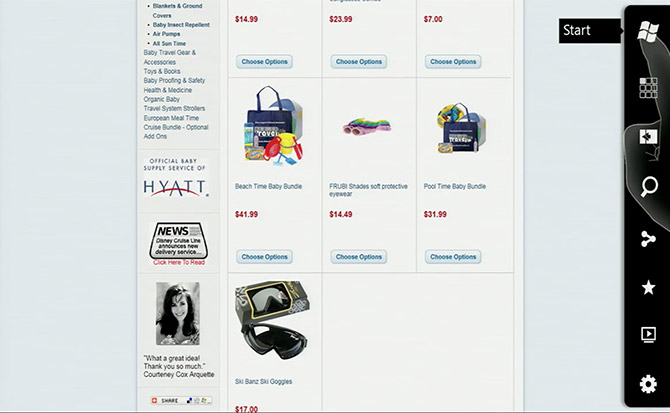
Enlarge / A much busier-looking charms bar with more charms and more ornamentation.
Harris showed some early versions of the Windows 8 interface from 2010 in his presentation. Even then, the core elements were all in place; the Start screen packed with Live Tiles, the snapped side-by-side multitasking, and the charms that swiped in from the edge. This first iteration was more complex than the final product, as the early Start screen included a persistent clock, date, Wi-Fi signal meter, and battery meter. Those things are now only visible when the charms are on-screen—and those charms originally numbered eight instead of the five we have today.
The presentation also gives some insight into some of broader design themes, in particular, "doing more with less;" stripping back unnecessary or irrelevant features of the operating system. Harris cites as an example the warning Windows gives when your battery is low. In Windows 7, this dialog warns you that the system will hibernate and that you need to plug your computer in or "find an alternate source of power," as if you could invent cold fusion or something to keep the system running. In Windows 8, the message simply tells you to plug your computer in again.
What's striking about the presentation is that they reveal that genuine thought that has gone into the Windows 8 design, from ensuring certain pieces of the Start screen line up when swiping through to guaranteeing that the kerning of the "Start" text on the Start screen is always right. Harris acknowledges that many of these things might go unnoticed but argues that "God can see" the details.
This is eye-opening, because so much of Windows 8 lacks this same attention to detail. Windows 8 is really two user interfaces crudely grafted together. And parts of Windows 8 have had this attention lavished on them which makes the contrast with the other, older parts of the operating system even more stark.
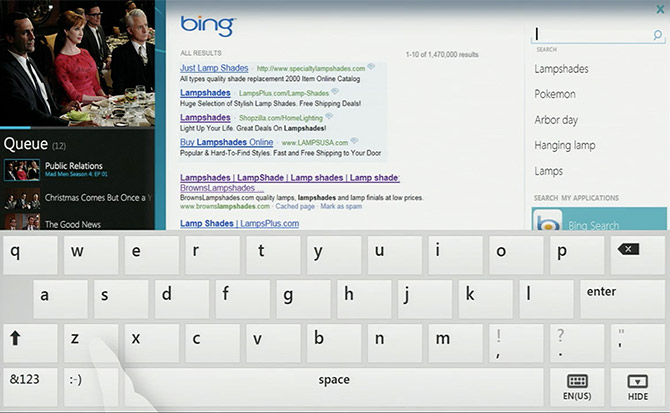
Enlarge / The early keyboard had more shading than the final model and lacked some of the conveniences like arrow keys. by http://arstechnica.com
The past two generations of Windows Phones have produced two innovative cameras. The 16mp camera on the HTC Titan II and the 8.7MP camera on the Nokia Lumia 920.
Both cameras are similar in that they use a back lighted sensor (BSI) that gives both cameras an edge with low light photography. The Titan II has the greater resolution and digital stabilization. The Lumia 920 has a faster lens (f2.0 vs the Titan's f2.6) and optical stabilization.
But does one of these Windows Phone camera giants have an edge as far as image quality is concerned?
A few more spec comparisons before we get into the nitty gritty.
The HTC Titan II has a 16mp BSI sensor with digital stabilization. The Titan II utilizes a 28mm f2.6 lens.
The Lumia 920 has a 8.7mp BSI sensor with optical stabilization. The Lumia 920 is fitted with a Carl Zeiss 26mm f2.0 lens.
The Titan II has the edge with regards to menu controls that include scenes, effects, smile capturing, face detection, resolution, white balance, brightness, contrast, saturation, sharpness, ISO, red eye reduction, image stabilization, metering, and flicker adjustment. The Titan II also has Panorama and Burst modes.
The Lumia 920 pales in comparison with controls over scenes, ISO, Exposure compensation, white balance, aspect ratio, and the focus assist light. You do have access to a panorama, cinemagraph, and smart shoot features from Nokia that are accessible through the camera's lenses feature.
While the HTC Titan II has the most flexibility with regards to settings and resolution, the Lumia 920 has one advantage that is tough to beat, optical stabilization. While the Titan II does have digital stabilization it is not as effective as optical stabilization. Digital stabilization basically boosts the camera's ISO to allow for a faster shutter speed. The faster the shutter speed, the less influence camera motion has in blurring your photo.
Optical stabilization on the other hand is more mechanical in nature. Springs, motors or other form of mechanics stabilize the sensor. The end result is that slower shutter speeds can be used and motion blur caused by camera movements reduced if not eliminated. Optical stabilization isn't going to prevent motion blur if you're jumping up and down but deals more so with movements caused by breathing, hand fatigue or other slight movements.
Now to the image quality. We captured the test photos from both cameras using the default settings except one, the aspect ratio on the Lumia 920. We set that to 4:3 to match the aspect ratio of the Titan II.
HTC Titan II (left) and Nokia Lumia 920 (right) Outdoor Test Shot
These two Windows Phone cameras are solid performers. We'll give the Titan II and edge with regards to sharpness but the Lumia 920's images were better exposed and slightly warmer with better color. However, the Titan II did handle some indoor lighting better with warmer tones (check the indoor lumber shot). But this isn't uncommon for different indoor lighting types to effect the white balance of cameras differently (see the change in the indoor lamp shot).
HTC Titan II (top) and Nokia Lumia 920 (bottom) Indoor Test Shot
HTC Titan II (left) and Nokia Lumia 920 (right) Indoor Test Shot
Outdoor shots were nice with both cameras but I did find the Titan II had trouble with exposure at times. This wasn't a consistent issue but appeared every now and then. The bright sun created a glare on the Gnome but the white light globes had no glare. Colors were across the board warmer and more accurate with the 920. While the Titan II performed like a trooper, the colors appeared more cooler with a touch of a blue color cast present. Nothing critical but noticeable.
HTC Titan II (left) and Nokia Lumia 920 (right) Outdoor Test Shot
HTC Titan II (bottom) and Nokia Lumia 920 (top) Outdoor Test Shot
Low light photography was a tough one to judge. Both cameras have BSI sensors that pulls in more light. The Titan II performed really well indoors but at night, you can see the advantages the 920's optical stabilization has. There was less blurring with the 920 at night than with the Titan II. An interesting observation with these two cameras and night time shots, the Lumia 920 shot the below photo at ISO 800 and a shutter speed of .3 seconds. The Titan II on the other hand shot the same photo at ISO 1015 and a shutter speed of 1/7th second. The optical stabilization clearly allows the 920 to use slower shutter speeds without the need for higher ISO speeds.
HTC Titan II (bottom) and Nokia Lumia 920 (top) Night Test Shot
Even when light is more ample, the Titan II relies on higher ISO ratings. This next shot was taken with the 920 using ISO 640 and a shutter of 1/6th second. The Titan II used ISO 1015 and a shutter speed of 1/7th of a second. Even though the Titan II has the BSI sensor it relies on higher ISO levels for night time shots. It works but the higher ISO could generate more image noise (or grain) that could cause a decline in image quality.
HTC Titan II (bottom) and Nokia Lumia 920 (top) Night Test Shot
Based solely on the camera, it was a difficult choice between these two cameras. Image quality was good on both and the Titan II has the edge with regards to settings and sharpness. But the optical stabilization on the Lumia 920 was the determining factor. We still think the world of the Titan II's camera but the OS is an innovation that really sets a camera apart and gives the 920 an edge over other Windows Phone cameras. The slight softness we see with the 920 can be corrected. Motion blur that the lack of optical stabilization causes can't.
Is it worth moving from the HTC Titan II to the Nokia Lumia 920? I don't think you can make that choice based solely on the camera. You would have to consider the differences between Windows Phone 7 and 8, the differences between how HTC and Nokia on how they support Windows Phones, and design features. The best answer we have is that if you're moving from the Titan II to the Lumia 920, you won't be disappointed with the camera's performance.
HTC Titan II (top) and Nokia Lumia 920 (bottom) Indoor Test Shot
HTC Titan II (left) and Nokia Lumia 920 (right) Outdoor Test Shot
Hey, look at that! The Nokia Lumia 810 exclusively for T-Mobile showed up on our doorstep and we decided to film us opening her up.
Now although Mobile Nations guru Phil Nickinson played with a dummy Lumia 810, yours truly has not had a chance to even touch one—so this will be my first “hands on” with T-Mobile’s new device. Off the cuff?The screen, even at 4.3” and 800x480 is really bold, bright and eye popping, due in part to some ClearBlack and an OLED display. It also blends seamlessly with that soft-touch black body, which feels quite nice to hold...
The device feels quite light compared to its heavier brother, the Lumia 920 and is in many ways similar in size. If you’re wondering about quality, it still has Nokia’s signature level of craftsmanship but it is certainly a step below the 920’s curved polycarbonate shell, make no mistake. Oh and that camera? Surprisingly it does have an auto-focus assist lamp, which is a nice touch but the lack of PureView for low-light shots is quite obvious.
The device does hum along nicely with a 1.5GHz dual-core CPU and although it took about 5 minutes to install all the software, you do get Nokia’s full stable of apps (City Lens, Maps, Music, Transit and Drive) all installed in one shot. In addition, T-Mobile has their exclusive apps including 411 & More, Bonus Apps catalog, CallerTunes (music while people wait for you to answer), Slacker Radio and Zynga Games. That later one brings you to the Windows Phone where you get the ad-free versions of Draw Something and Words with Friends for $0 (savings of $6), which is a great sell actually for you young folks.
Look, we’re not going to beat around the bush: this is no Lumia 920, so don’t get your hopes up. But this is a Nokia Windows Phone and for what it is, it’s kind of nifty. If we had to call one feature out on the phone it’d be the display: it’s super intense and will keep your eyeballs happy. Just look at those photos...it's really that powerful!
We’ll have more on this phone in the coming days. For now, you can sound off in comments. The T-Mobile Lumia 810 from Nokia is expected to go on sale this Wednesday, November 14th for $99.99 on a Value Plan and $149.99 on a Classic Plan.
From this Friday AT&T will be offering the Lumia 920 at any of its company owned retail stores for $49.99. Of course you’ll need to sign a contract for two years with voice and data, but at least the carrier will be matching both Amazon and Walmart.
This Friday will see plenty of ‘crazy deals’ but this defiantly some compelling pricing from AT&T who are already selling the device for $99.99. The deal is available from this Friday 23rd to the 25th for those of you who are keen to grab one.
The Lumia 920 is a premium quality phone with a set of features and specifications that puts it above some other flagship devices. AT&T is already offering the device at a seriously good price of $99.99 on a contract basis so when they offer up the unit for $49.99 will folks be able to resist?
Here in the UK pricing of handsets has been something of a token consideration almost since the explosion in retail mobile phones kicked off. In the US devices have been kept at rates which in some ways help to differentiate a higher quality nature of the handset.
A quick look at the deal shows that the HTC One X is going for $199.99 as a black Friday deal, but will the new Lumia 920 pricing make it look slightly on the cheap side?
This is of course a black Friday deal and if you have been waiting for the best possible moment to pick up this superb handset we’d urge you not to miss out.
Despite being one of the first Windows Phone 8 devices we saw unveiled the ATIV S has still managed to arrive the late to the Windows Phone 8 launch line up.
The device has plenty of people interested in its 4.8” AMOLED screen, slender body and expandable base memory but where can one be ordered from? Future Shop seem like they might be able to offer some help to lucky Canadians who don’t mind signing up for a three year contract to nab a device for $50.
Here in the UK we’re not advanced or hip enough to be favouring three year agreements but we understand it’s all the rage in Canada. If you’re not too keen on signing up to a three year deal we understand they can hook you up in store with some other less fashionable airtime arrangements.
Here is what they have say:
"This unit is not available for sale online. New in-store activation required on a three year plan with eligible packages in order to purchase this unit at the listed price. 2 year, 1 year and month to month pricing is available in-store. Some conditions apply. See in store for details. This is a listing for the product WebID 10230120.**Please Note: The service provider may charge activation and other fees. Contact the service provider for more details."
Good news that the ATIV S is finally making more appearances for pre-orders and retailers globally are stocking them. For a while there we were starting to think that Samsung didn’t have much interest in making their next generation Windows Phone 8 handsets available to the public.
Windows Phone 8 looks absolutely stunning when running on this 4.8” screen and we’re sure there will be plenty of takers. Now if only Samsung and its partners would hurry up and get them into the channel we’d be all the happier.
Shantanu Gawde is a 16-year-old wunderkind that became a Microsoft Certified Application Developer at the age of 7. He lives in India, where some refer to him as the nation's "youngest ethical hacker". Last year, he hacked a Kinect to take photos without the user's knowledge using malware running on a Windows 7 PC. Simply put, the guy is an über nerd with some mad skills.
Shantanu Gawde
But has Gawde managed to code malicious software for Windows Phone 8 too? That's actually quite possible. Later this month, he is expected to demonstrate his methods of infecting Windows Phone hardware during the Malcon security conference in New Delhi, India. In particular, Shantanu will be presenting exploits allowing one to steal contact information, personal data, and images from a device. And Microsoft is well aware of his intentions, which is why it will take into account any potential flaws that Gawde may have exposed.
Further details have not been disclosed, so we aren't entirely sure how the teenage prodigy managed to crack the security of Windows Phone 8. The Malcon 2012 conference is scheduled to begin on November 23, and we hope to learn more on the matter after Shantanu Gawde's presentation.
Two years ago, the mobile landscape was quite different than what it is today. Android flagship phones sported 1GHz single-core CPUs and were in the process of upgrading to Froyo, the iPhone 4 was the Apple phone of choice and the word "phablet" was sure to be followed by a "Gesundheit." (It still is, arguably.) This is just a brief glimpse at the world in which Microsoft's Windows Phone 7 was born. Destined to be the replacement solution for an obsolete Windows Mobile 6.x platform, WP7 did its best to disrupt the industry by offering its unique Metro user interface and slick performance across the board.
There was one growing problem, however; the mobile industry was rapidly changing, and the Windows Phone honeymoon didn't last as long as Microsoft would've liked. Today, the company enjoys less than 5 percent of the world's smartphone market share as it prepares to launch its next major revision,Windows Phone 8. The new firmware promises to resolve concerns surrounding hardware limitations and the platform's ecosystem, add a plethora of long-awaited features and integrate the OS with Windows 8. It's a hefty task for Microsoft to undertake, to say the least, but we're hoping that two revolutions around the sun were enough for the software giant to impress us with its struggling mobile platform. Did it pull it off? Take a look at what makes Windows Phone 8 tick after the break.
Hardware
It's not very often that we feature a hardware section in a mobile OS review, and it's even rarer for us to put such a strong emphasis on it. Yet, one of the most anticipated enhancements to the Windows Phone platform has been support for several long-overdue hardware components. Ever since WP7 (and WP7.5, also known as Mango) came out, Microsoft's approach has been to standardize nearly every aspect of its hardware: OEMs are restricted to single-core processors, WVGA displays, no external storage and so on. The company has always defended these decisions, as standardized support seemed to help keep WP7 running efficiently and smooth -- not to mention it was less work for developers to make apps for multiple devices.
With WP8, Microsoft has either had a change of heart or found a way to keep its platform running as efficiently as before even with the new additions. Either way, it's a necessary change for the outfit if it hopes to be relevant in today's competitive market. Let's take a look at the most significant changes to the hardware capabilities in WP8.
Multiple cores. Until now, Microsoft's restriction on multi-core processors has been a move that has frustrated power users for the last two years. Critics have argued that the company wasn't keeping up with the times or matching Android and iOS. Microsoft, meanwhile, repeatedly assured us that the move to two cores and beyond would take place once the company found a way to preserve battery life. No matter which argument you agree with, the fact is that now WP8 can support anywhere from two cores to 64. Devices running the OS will start out with dual-core Snapdragon S4 processors, but we doubt it will be long before Microsoft gives the green light to quad-core chipsets. We'll save performance reviews for when we test out these individual devices. Suffice to say, we were already fans of how smooth and quick the OS was on WP7, and our first impressions of the Windows Phone 8X definitely continues (and improves) that trend with the new specs.
Screen resolution. With WP7, only one display resolution was allowed: WVGA, or 800 x 480. Again, this was par for the course on flagship Android devices in 2010 (and way behind the iPhone's Retina display). As you can imagine, this has been another sore point for users -- especially since 720p resolution became the norm. Windows Phone 8 devices can now support one of three options: WXGA (1,280 x 768), 720p (1,280 x 720) and the old-fashioned WVGA standard (ideal for entry-level smartphones). This brings WP8's screens back into the modern age for now, but we're already starting to see Android phones with 1080p displays, and it won't be long before that becomes the new standard for flagship handsets. WP8 is off to a good start, but we're hoping that we'll see even more options available in the near future.
Expandable storage. With the mysterious exception of the Samsung Focus, Microsoft put the kibosh on removable storage for WP7 devices. It was an odd situation, since plenty of phones using the OS actually had a slot for microSD hidden in inaccessible places. The whole thing naturally sparked a controversy when the platform launched, but the issue has finally been resolved; Windows Phone 8 fully supports external storage up to SDXC, allowing you to add as much as 64GB in additional memory. Unfortunately, our particular review unit (the HTC Windows Phone 8X) doesn't include a microSD slot, so we were unable to experience this for ourselves.
NFC. Windows Phone 8 finally brings native support for Near-Field Communications. This opens up lots of possibilities for both users and developers. In addition to the new Wallet feature, you'll be able to use NFC to transfer plenty of content from your phone to either your PC or another person's device. We'll discuss these features in more detail as we go along through this review. (As an aside, we've seen the tech show up on a Windows Phone before -- namely in the Nokia Lumia 610 NFC -- but it was added in as a software stack on top of the OS, while WP8 will natively support the feature.)
Just as it's done in the past, Microsoft has offered up a list of hardware requirements for each phone to run Windows Phone 8. The list includes:
Qualcomm Snapdragon S4 dual-core processor
Minimum 512MB RAM for WVGA phones; minimum 1GB RAM for 720p / WXGA
Minimum 4GB flash memory
GPS and A-GNSS; GLONASS is supported if OEMs decide to include it
Support for micro-USB 2.0
3.5mm stereo headphone jack with three-button detection support
Rear-facing AF camera with LED or Xenon flash, optional front-facing camera (both need to be VGA or better) and dedicated camera button
Accelerometer, proximity and ambient light sensors, as well as vibration motor (magnetometer and gyroscope are optional)
802.11b/g and Bluetooth (802.11n is optional)
DirectX graphics hardware support with hardware acceleration for Direct3D using programmable GPU
Multi-touch capacitive touch screen with minimum of four simultaneous points
Another requirement not listed above is that all Windows Phone 8 devices must include the same standard set of buttons: each one needs to have Start, back, search, power, camera and volume up / down keys.
All of this sounds promising, given Windows Phone 7's frustrating hardware restrictions, but we're concerned at how often this set of standards will be updated in order to keep pace with the rest of the industry. It's nearly caught up with competing platforms, and we'd hate to see Microsoft fall behind again.
User interface improvements
The initial boot sequence takes you through the usual litany of welcome and setup screens. You'll be prompted to create or log in to your Microsoft Account, set your preferred language and choose if you'd like to back up your pictures, texts and phone settings. From there you'll find yourself on the Start screen, free to roam through various Live Tiles and the app list as you please.
If you've used a Windows Phone before, you'll instantly notice that something is different -- very different. As you enter the Start screen you're presented with a familiar checkerboard-like set of Live Tiles as you're used to seeing on a typical Metro Modern UI, but it now extends all the way to the right edge of the screen (in WP7, the tiles only comprised about two-thirds of it, while the rest was simply unused space). This adds a lot more real estate for each tile. Microsoft has also thrown in support for three Live Tile sizes (compared to two in WP7) and has given developers access to all of them. What used to be the smaller tile in WP7 is now considered medium, which means there is an even smaller option available for stuff you want access to but that doesn't require much space. This works well -- we want to have a settings tile pinned to Start, but there's no reason it needs to occupy a large portion of the screen. Same goes for other utilities.
You also have the opportunity to change the tile size, a privilege not extended to WP7 users. Third-party developers are required to support small and medium, but it's up to them if they want to accommodate the largest size. To toggle back and forth between all three sizes, just long-press the tile and a new arrow shows up in the bottom-right corner. Press it and presto -- your tile just shrinks or expands, depending on the direction the arrow is facing. The folks in Redmond claim that this new setup makes your phone even more personal than it was before; we just like that we can add more viewable content to the Start screen, and do so in an efficient, well-organized way.
While the Start screen got the biggest facelift in WP8, there are also some important changes to the lock screen that ultimately make it more useful. In WP7, you were allowed to receive some details about the next appointment in your calendar. Now, you can swap it out for your most recent unread email, text message or missed call. Notifications on the bottom of the screen are more customizable now, as you can choose which types of notifications you receive and what order you want them in from left to right. There's room for five icons, but the major limitation here is that only one of them can be used for notifications from a third-party app. (Update: Microsoft tells us that all five icons will be able to support third-party apps, not just one.) It's an improvement over WP7, but unfortunately it still doesn't best Android's notification system. The lock screen background can also be dynamically updated to display third-party app information -- HTC, for example, does a terrific job of this in its weather app, letting you view the current temperature and the day's forecast (along with pretty pictures of your local weather conditions), and apps like CNN will offer breaking news updates in the same way. You can also have the lock screen show off the Bing photo of the day, if you're just looking for eye candy.
Aside from these two changes, WP8 doesn't include many drastic tweaks to the user interface. As you'll see in this review, that doesn't mean Microsoft hasn't thrown in extra features -- it just means people familiar with the Modern UI won't have much of a learning curve when they begin using their new phones.
Syncing your phone
Windows Phone 8 offers several ways to sync your phone and PC, so that you don't have to go through Zune to get access to your music, videos and photos anymore. Devices on the platform now utilize MTP, which means you can access the phone as an external hard drive. Drag and drop the files you want on the phone and that's all you have to do. You can even go into Windows Media Player and sync up songs and playlists the same way we've been able to do for Android phones.
You can also sync your device with iTunes, but you'll need to use Microsoft's desktop companion app to do so (available for Windows 7 and Mac; Win 8 has the feature built-in). In fact, this particular program is the only option Mac users will have if they want to connect the phone to their machine. When you dive in, the program first asks you if you want to sync iTunes or Windows libraries. If you choose the former, it brings up iTunes in a separate window and begins loading all of your music, pictures, videos, podcasts and ringtones. From there it's just a matter of picking and choosing what you want to toss into your phone. This alleviates one of the biggest concerns iOS users have had in moving over to Windows Phone, and it works seamlessly.
Fortunately, you'll also be able to enjoy OTA upgrades, a feature that's been offered on Android and iOS devices for a long time now. You can be notified when the next update is available, download the updates automatically or manually check for a new software version.
Lastly, WP8 adds the ability to back up your text messages, app list, IE10 bookmarks, device settings and photos / videos to the cloud, with all of this data being tied to your Microsoft account. This makes it much simpler to restore your phone if it gets wiped or if you need to replace it for any reason.
Compatibility with Windows 8
If you've taken even a single look at Windows 8, it's pretty clear that Windows Phone 8 has a much greater kinship to its desktop counterpart than its previous iteration did. Microsoft is betting pretty big on the Modern UI, and has worked hard at combining its desktop, tablet and mobile experience into one platform. Not only do they utilize the same style in terms of user interface, they also now share the same code, which means Windows 8 developers will be able to use the same code for WP8 apps, and vice versa. WP8 also supports C++ and C, as well as DirectX. Microsoft's hope is that this commonality will motivate third parties on both sides to come together and strengthen its new and unproven ecosystem.
As to whether or not this strategy will work, we believe it will make the platform stronger going forward, but it's going to take a fair amount of time for developers to push out enough earth-shaking apps to persuade the typical iOS or Android user that has already heavily invested in their ecosystem of choice. This type of thing won't happen overnight, but it's much more believable once flocks of PC users make the upgrade to their new desktop OS.
Even though the company's putting such a heavy emphasis on the Win 8 / WP8 experience, it doesn't mean it's completely scrapping Windows Phone 7 or 7.5; all of our legacy apps have chugged along without any struggles, and we expect to see large-scale improvements in these apps when they add compatibility in the near future.
Kid's Corner
We'll be straight-up about this; many of the features we'll discuss in this review suggest that Microsoft's main focus is keeping up with some tough competition in Android and iOS. That doesn't mean that Windows Phone isn't bringing anything new or innovative to the table, however. On the contrary, we believe that many of WP8's enhancements are unique enough to attract new users. One of our absolute favorites is Kid's Corner.
Parents, take heed: Kid's Corner is designed primarily for you, not the children nestled under your wings. Most of us have yearned for the days when we could own a phone capable of offering more than one user account. WP8 addresses this need. This feature enables a "guest user" mode that prevents the kiddies from deleting all of last week's email, calling up random people you don't want to talk to and wreaking complete havoc.
Let's talk about how it works. When you go into settings (or the convenient Live Tile already on the Start screen), you can choose from a list of apps, games and photos that you want your kids (or meddling frat buddies) to have access to. You'll also need to set up a password for yourself, by the way, so they can't access it. Once you've set everything up, return to the lock screen and swipe to the left. You'll be greeted by a completely new lock screen, and all you have to do at this point is swipe up and you're in. Kid's Corner still has a Start screen that's just as customizable as your own, but your kids won't have an app list to take advantage of.
This feature isn't the first of its kind on the system level: Android users can now take advantage of multiple user profiles with the recent unveiling of Jelly Bean 4.2, but that's still currently restricted to tablet use only, giving WP8 a slight edge in that sense. We've also seen a similar feature capable on jailbroken iPhones. Regardless, the opportunity to offer a second "guest" account within the OS is a welcome addition that should level the playing field with Android and even offer a competitive advantage over iOS in this area.
Wallet and NFC
Microsoft has responded to Google Wallet and Apple's Passbook by introducing its own Wallet app, which is in many respects a combination of its two main competitors. It serves as a hub where you can keep your credit card information, which can then be used to make purchases in the Windows Phone store or for NFC-enabled mobile payments. As a warning, carriers aren't guaranteed to support that last feature.
Wallet also hangs onto any loyalty or membership cards you have (including Microsoft gift cards, natch), letting you find and store merchant deals; you'll even be able to add reminders and pin individual deals to the Start screen. Since WP8 still hasn't officially launched, we weren't able to find very many vendor deals -- most of them were provided by LivingSocial, and none of the offers were appealing to us -- but as more vendors sign on, this could become an intriguing feature. Lastly, another panel gives you a list of apps that are capable of tying into the Wallet, though few were available to us at this point. Much like many other aspects of the Windows Phone ecosystem, this feature is heavily dependent upon third-party buy-in, and will only stand to get better as more apps sign on. (By the way, Wallet is secured with a four-digit PIN that you'll be required to type in every time you enter the app.)
We like the direction Wallet is heading here, as it combines the best ideas from iOS and Android's options. To further improve the experience, we'd love to see Microsoft include some sort of Google Now-like ability where the phone is capable of learning your interests and needs based on what you've previously looked at, but this is at least a start.
WP8's NFC support is useful for mobile payments, but it doesn't stop there. The platform also allows you to use this technology to share videos, music, contact information and IE10 links between phones and other devices. Maps, sadly, cannot be shared (although you can at least send a map of your current location via MMS now, as an alternative). NFC transfers work best when done from one WP8 device to another, but there are some transactions technically possible between WP8 and Android; contacts push to Android phones easily enough, but we couldn't seem to transfer URL links the same way. Photos and music aren't compatible due to differences in the platforms -- they simply appear in the form of inaccessible tags. Attempts to go the opposite way and transfer files to WP8 from an Android device failed. While we're happy to see support for NFC, it looks as though our dreams of a true cross-platform solution have yet to be realized.
Expecting big changes in how WP8 handles its email experience? Don't, unless you've been yearning for an inbox with a dark background. Granted, the enhancement is much less harsh on our eyes when checking email in dark rooms (read: lying in bed), and it may offer some improvements on battery life on AMOLED devices. Indeed, we do prefer this over the standard white background in most cases, but there's one catch -- it reverts back to the white background when you view the actual email, thus negating the point of the black background in low light.
To be fair, there are a couple other enhancements to the email functionality aside from this; Office documents will now show up automatically in the Office Hub (previously, you had to view the document and choose to save it on the phone before it showed up), and you can dictate emails using voice-to-text.
As the email experience hasn't made any significant leaps, our opinion of it hasn't changed much, either. While it has some strong points you won't find on iOS or Android, such as the ability to link some or all inboxes together in universal fashion, as well as pinch-to-zoom capabilities, we also have our share of frustrations. A couple examples: just as before, the conversation view still involves clicking on individual replies, rather than having it be one continuous thread just as you would see if it were a chat in your messaging hub. Additionally, the number of unread messages disappears from your Live Tile as soon as you enter the app, even if there are still emails that you haven't looked at yet.
Data Sense
Microsoft is also introducing its own data-usage tracker similar to what Google's thrown into Android 4.0 and above, but there are a few design considerations that keep this from being just a carbon copy. Much like on Android, Data Sense will start out by asking you about your data plan and the end date of your monthly billing cycle. The program then monitors your data usage, which can be tracked through a Live Tile, and will even warn you with a pop-up notification if you're approaching your monthly allotment. Additionally, it helps you find nearby WiFi hotspots and then, once you're connected to one, it'll automatically switch internet-loving background tasks to go off of that connection. Lastly, it also uses IE10 to compress web pages in an effort to limit how much data is coming through your pipeline.
We weren't able to test this service out, but Microsoft confirmed to us that Verizon will be the first US carrier to get Data Sense, and will have it before the holidays. If you're on a different network, you can expect to see it arrive next year, though no month or date has yet been set -- we'll keep you posted as we hear more.
Phone
The only real changes to the phone app are taking place behind the scenes, as the user interface remains virtually unchanged. Instead, the crucial addition here is support for VoIP integration. This is possible thanks to a set of Rich Communication Suite APIs that have been included in the SDK, enabling third-party devs to step up and grasp the opportunity. This means we can look forward to companies like Qik, Tango and Skype putting out apps with this capability in the near future.
Here's how it will work: whether or not the app is running, you'll be able to receive VoIP calls just like you would with any normal call. The notification window will be the same, and WP8 can handle cellular and VoIP calls at the same time. Naturally, Microsoft is placing a pretty high emphasis on the stuff you can do with Skype; if you use the service, you can be reachable even when the app is closed. On the same note, multitasking is fully supported here, so your calls don't hang up when you try to exit the app. You'll even be able to answer Skype calls the same way you normally would with an inbound cellular call.
Maps
This isn't the first time this year that we've seen a phone maker completely change its mapping technology in a major platform revision, but we're hoping that the one Microsoft is making on WP8 goes a little more smoothly than its competition. As many of our avid readers know, we're quite impressed with Nokia's mapping prowess, so we were pleased to see that Windows Phone 8's maps have been blessed with the Finnish company's technology. (Yes, this means that other OEMs will be using Nokia Maps, rather than Bing.) The partnership with Nokia has also helped Microsoft improve its traffic data coverage, expanding to 26 more countries and showing more secondary streets.
With this technology come a few solid advancements, including the ability to download maps for offline use. This is one of the most exciting features to us, largely due to its pleasant performance in real-world tests conducted by our very own Darren Murph on the Nokia Lumia 900.
Unfortunately, this transition into Nokia Maps has a negative side effect: voice turn-by-turn navigation has been disabled, making it only accessible through apps that support the feature, such as Nokia Drive. It wasn't available on our review unit, however, so we weren't able to test it out.
Lastly, Local Scout has a new panel called "For You." Sounds like Microsoft's handing you a special gift, right? Not so much, but it's taking a little piece of Google Now to bring you local businesses, restaurants and places of interest based on what your friends and family like, on top of a few other factors (such as places that a lot of people have checked into, as well as deals that are currently "popular").
People Hub
The biggest addition to the People Hub is Rooms. Think of it as a proprietary version of Groupme (which may or may not be a coincidence, since the company was acquired by Skype last year). Here friends and family have their own little "hub" with a dedicated messaging thread and calendar, a place for everyone to post pictures and a panel where you can attach notes. Each Room can be pinned to Start and all of the messages in your thread will be treated as such, complete with the usual messaging notifications.
Other than that, the changes here are relatively few and insignificant. As we mentioned earlier, the addition of NFC support gives you the chance to share contacts back and forth with others, and you can use this opportunity to add those newfound contacts to your People Hub. Groups share a panel with Rooms, but it's ultimately the same as well; the largest difference is that each group now syncs with your Microsoft account, so they'll now show up in your Outlook.com or Hotmail.
Messaging
Not a lot has been changed around in the messaging department. WP8's feature enhancements in this area include more MMS options: you now can send contacts and / or your location in a message (showing your location on a map), and you can delete multiple messaging threads at once. Lastly, you'll also notice that your threads from any Rooms you have set up are featured here, keeping you from having to back out of the hub to make the switch over to your group chat.
Photos and Camera
Even though the camera is one of few areas in the OS in which the manufacturers are able to let their creative juices flow and differentiate themselves, the overall UI and mechanics remain the same. The viewfinder UI has received just a few changes in the upgrade to WP8: zoom is no longer in the sidebar, because you can now pinch-to-zoom directly on the viewfinder instead. Taking its place on the sidebar are the flash toggle switch and the ability to select a Lens. The camcorder and front-facing camera toggles haven't gone anywhere.
What's a Lens? Developers can now make apps that apply various customized settings and filters to the native viewfinder to enhance your overall photo-taking experience. We had the chance to play with a few examples. Photostrip lets you take shots in burst mode, and it allows you to dictate how many shots are taken in a burst, as well as the amount of time lapses in between pictures. CamWow gives you a whole bunch of filters to use, much like you would find in Ice Cream Sandwich. Finally, Photosynth offers you the opportunity to take panoramic shots. As these are just a few examples that should be launching at or soon after WP8's launch, we doubt it will be much time before we see others hitting the Windows Phone Store. Fortunately, there's a "find more lenses" option that will take you straight into that category in the Store itself.
When it comes to what you can do after the shot is taken, Windows Phone 8 has a few new editing tools to add to its collection: crop and rotate. On top of that, SkyDrive users are given more flexibility in how compressed their photos are when they're uploaded -- pics are uploaded in "good quality" by default, but you can change the settings so your shots will be pushed to the cloud in full res ("best quality") as long as you're connected to a hotspot. You can also use NFC once again to your advantage by sharing your pictures and videos with others.
As for the Photos Hub, the panels are all the same; the galleries, however, now come with a much-needed multi-select button so you can delete, share, save or star more than one at a time.
We already know the Zune brand is yesterday's news, but it seems as though Windows Phone is doing everything it possibly can to place itself as far away from the old brand as possible. We no longer have the music section of the Zune marketplace, it's the standalone Xbox Music Store; likewise, the Zune pass is now the Xbox Music Pass.
Perhaps the best new feature is the phone's deep integration with the cloud. Purchases you make within the Music Store will automatically be stored there so that you can listen to these songs on all of your Microsoft-branded devices (i.e., Win 8, WP8 and Xbox 360). Every song or video associated with your Microsoft account will show up in your collection, and you can choose to stream them or download them so that you can listen later. Playlists receive the same treatment.
There's also a Buzz Panel in the Xbox Music Store, provided you're in Artist View. This feature is supposed to let you stay up to date on the latest news connected to that artist by showing Twitter feeds, news feeds and images related to them. As of this writing, Microsoft has not enabled the feature; we've been told to expect it sometime soon after launch.
If there's one thing that Microsoft can't deny, it's the fact that the gaming experience was lacking on Windows Phone 7, despite the company's efforts to market its Games Hub in connection with Xbox Live. Fortunately, the folks in Redmond seem to have realized that this needed to change in order for WP8 to gain more momentum -- when most of the top games are going straight to iOS and Android, Windows Phone has struggled to attract popular titles like Words with Friends until now. That's definitely a cause for concern. Of course, games don't a good OS make, but it's one of the factors that many people take into consideration when looking for a new smartphone.
With that in mind, let's look at how Microsoft is addressing this issue. First, it hopes that its integration with Windows 8 and use of native code will attract more big-name console developers that weren't previously willing to drain unnecessary resources into something like this. Adding the extra support will theoretically entice devs because it should be easy to port Windows titles over to the mobile OS (and vice versa). Also, WP8 will finally give devs the power to offer in-game purchases (freemium, anyone?), increasing the opportunities for struggling third parties to make a few extra bucks.
There's one aspect of the Games Hub that has us completely puzzled. The spotlight panel features a large list of gaming options that Microsoft wants to promote, but tapping on the links take us into a link on IE10. From there you can click on another link that will take you into the Windows Phone Store, but we have a hard time understanding why we need to be routed into the browser. We'd rather be taken either directly into the Store or at least a page within the Hub that loads faster and shows your options in an efficient manner. Take the middleman out of it.
We've been talking about the Windows Phone Store quite a bit throughout this review, and until now, we haven't actually discussed that it is, in fact, the rebranded Windows Phone Marketplace. On the outside, nothing sticks out like a sore thumb; the renovations here are mostly of the behind-the-scenes sort. For starters, the revamped market is now powered by Bing Search, something that Microsoft says will bring you more relevant results and recommendations -- it now takes ratings into consideration when pulling up search results, as well as the rate of uninstalls and crashes.
Additionally, the Store now offers in-app purchases and multiple methods for you to pay up. As we mentioned when discussing the Wallet app, you can choose from carrier billing, a credit / debit card, Microsoft gift card or PayPal. As a side note, any WP7.5 apps you purchased will still be available on WP8 -- without having to pay for it a second time.
Internet Explorer 10
Every major update to Windows Phone so far has included a bump up to the next version of Internet Explorer. So it is this time, as WP8 now houses Internet Explorer 10 (Mango had IE9). Again, you're not going to see many new UI elements here, as most of the improvements are taking place underneath -- this new iteration promises higher efficiency, faster rendering time, hardware-accelerated graphics and twice as much HTML5 support as IE9.
Does it work as promised? Running side by side against Mango-powered phones, it was clearly much faster. In particular, our Windows Phone 8X cruised through SunSpider in 904ms. That's the fastest time we've recorded on a mobile device, though not by much -- it barely beat out the iPhone 5's score of 914ms. (If you're into benchmarks, the 8X also got 326 in HTML5test and 56,047 in Browsermark.)
The address bar also can be customized a bit more than before, as you can now choose between three different functions for the main button found within: your options are stop / refresh, favorites and tabs. To add to the list of new features, IE10 now has "find on page," Do Not Track and NFC link sharing. IE10 also includes a SmartScreen filter, which is a lifesaver if you accidentally wander into a malicious site.
Company Hub
We'll admit that Enterprise isn't a huge area of coverage for us, and we typically refrain from going into excruciating detail in that area. One feature designed for the Enterprise, however, is actually too clever for us to simply shun. WP8 includes support for special private hubs that can only be accessed by employees or IT professionals. Known aptly as Company Hub, this is a place set aside for companies to offer news, calendars, notes and employee-specific apps that can't (and shouldn't) be accessible via the public Windows Phone Store. These types of apps have been available for iOS and Android for quite some time, but we enjoy the idea of each employee having a one-stop shop on their phone for all of their pertinent information, rather than having to sideload everything they need.
Google frustrations
Any of our readers who have given Windows Phone a chance over the last two years likely have seen that Google and Microsoft haven't played well -- at least, not when it comes to the latter's mobile OS. A quick search of the Windows Phone Store, in fact, shows only one app developed by Google Inc. This means that you don't have any native apps for Gmail, Reader, Voice, Talk or the vast multitude of other services. Third-party apps are available to help cover this gaping hole, but most of them aren't up to par with the experience Android users have on their devices. Good luck getting privately shared calendars to show up -- our various methods didn't turn up a way to do it. (Our regular Google Calendar and publicly shared calendars worked just fine.) Heck, even the web view for its services (most of which look great on iOS) appear the same way you'd expect it to show up on your kid's prepaid featurephone: slow, unintuitive and frustrating. Lastly, we haven't even seen any efforts from either company to integrate Google+ or Talk into the OS like what was done for Twitter and Facebook. Indeed, Windows Phone -- despite its various improvements -- still lacks a punch in this area, which makes it a tough sell for Android fans to move over.
Here are a few other notable observations concerning Windows Phone 8.
This one is huge: developers can now have their apps communicate with other third-party apps. This means that if one app has to hand you off to another to offer relevant content, it can do so. For instance, a Yelp app could launch your favorite GPS navigation app in order to provide you with step-by-step directions on how to get to that Mexican restaurant with all the rave reviews.
If you liked the keyboard before, you'll like it just as much now. Barely anything has changed on it, though Word Flow (the renamed version of Quick Correct from Mango) has been slightly improved. While Word Flow's word predictions and corrections are typically quite accurate, we'd still prefer a dedicated number row and more easily accessible punctuation marks. We also noticed that the keyboard often refused to correct -- or even understand, in many cases -- contractions. Unfortunately, opponents of the keyboard continue to be stuck with it, since third-party keyboards can't directly tie into the OS and have to resort to making you cut and paste everything you write.
Developers can make better use of Microsoft's TellMe service, which is accessible by long-pressing the Start button. While the service was already capable of opening apps with the power of your voice, it now supports the ability to dive in even further and do specific commands within those apps as well. For instance, we were able to start listening to music onHey DJ by saying "Hey DJ, play Call Me Maybe." (If that's what you're into, of course.) Again, this is an API feature that will ultimately depend on whether or not devs integrate it into their app.
While it's not a mainstream feature that everyone craves, the ability to take screenshots is incredibly important for tech-savvy individuals (not to mention yours truly, when it comes to writing this review). We've been confused as to why it's been left out for so long, especially when considering the multitasking feature added into Mango last year consists of several cards made up of screenshots. To take advantage of this opportunity yourself, you just need to press down the power button and the Start key simultaneously for one second.
Windows Phone 8 has added twice as many accent colors to its selection of themes, bringing the total to 20.
The calendar remains the same in Windows Phone 8.
WP8 offers support for 60 keyboard languages and 50 UI languages.
A minor irritation we've had with Windows Phone in general is the lack of a proper battery meter in an easy-to-glance place. This is still the case with WP8, unfortunately, though it can be seen without too much effort as subtext in the settings menu (look under "battery saver").
Office Hub has seen a few changes, including mobile versions of the Office 2013 suite (Word, Excel and PowerPoint); OneNote Mobile also disappears from the hub as it graduates to its very own standalone app. The new Office document list can stay in sync across Microsoft's different platforms, which makes it easier for you to move from phone to desktop or tablet and vice versa. PowerPoint lets you view slides in portrait mode as well as landscape, and it also lets you see the full slide deck instead of just an outline of slide titles. Word's added a full-screen reading mode, and Excel now supports charts, grab-handles and other UI enhancements.
Speaking of OneNote, as we mentioned, it now sits alone as its very own Live Tile and native app. While most of the functionality remains exactly the same, WP8 has thrown in the ability to send photos to the app, and you can also use TellMe to dictate notes for you.
Microsoft continues to make improvements in how Windows Phone integrates with its cloud service, known as SkyDrive. This is hardly surprising: you'd expect a company to encourage use of its own cloud service, but far too many WP users will find themselves frustrated at the lack of available storage space; anyone who signs up for a new account will receive 7GB total cloud space for free. It's technically better than what Apple and Google provide for its own cloud storage, but the 2GB difference won't be enough to persuade potential customers into making the switch, nor will the fact that few (if any) cloud services offer native apps with system integration. Also, competition in the cloud market continues to heat up, since several phones have set precedents by offering a complimentary 25 or 50GB of Dropbox space. Given its current position in market share, Microsoft can afford to open up more SkyDrive storage as an attempt to incentivize new customers.
We love the idea of glancing at our notifications when we're viewing the Start screen, but a concern we've had since the beginning is the fact that we have no way of seeing our important notifications when we're in other apps (aside from the occasional banner). With plenty of space available in the hidden status bar on the top of the screen, it would be great to see Microsoft throw in additional customization options for notifications here.
Wrap-up
With the exception of a few new features, Windows Phone hadn't changed much in the last two years. The new version of its OS, however, definitely makes the platform feel more refined and even brings back some of the freshness we originally felt when we first laid eyes on the firmware. We demanded support for hardware that's relevant to today's market, and Microsoft brought it; we wanted more app integration and customization, and it's now much improved over WP7. Indeed, Windows Phone 8 is precisely what we wanted to see come out of Redmond in the first place.
There's only one major question mark still looming over its head now; how will developers respond to it? In 2012, an OS is only as strong as its ecosystem, and regardless of Microsoft's best efforts to sell the platform to big-name developers (and even amassing over 100,000 apps to date), it's been an ongoing struggle for Windows Phone to appear relevant enough to attract popular titles. What the new firmware has, however, is much more potential than WP7 ever had; Microsoft has finally laid the proper framework to make the platform desirable to developers. We'll also likely see a large number of Windows 8 customers eventually drawn to Microsoft's phone OS as they begin investing time and money in the desktop or tablet versions.
Let there be no doubt -- Windows Phone 8 is a definite improvement over its predecessor, and it's long overdue. In general, we like what we see, and users and developers have been eagerly awaiting this update ever since the Windows Phone platform first launched. It's still far from perfect, but Microsoft has finally caught up in many ways to its competitors (and come up with some clever new features in the process), and by doing so, the momentum is now in its court. If Microsoft loses that momentum in the near future, however, we have a hard time seeing its OS recovering from it.